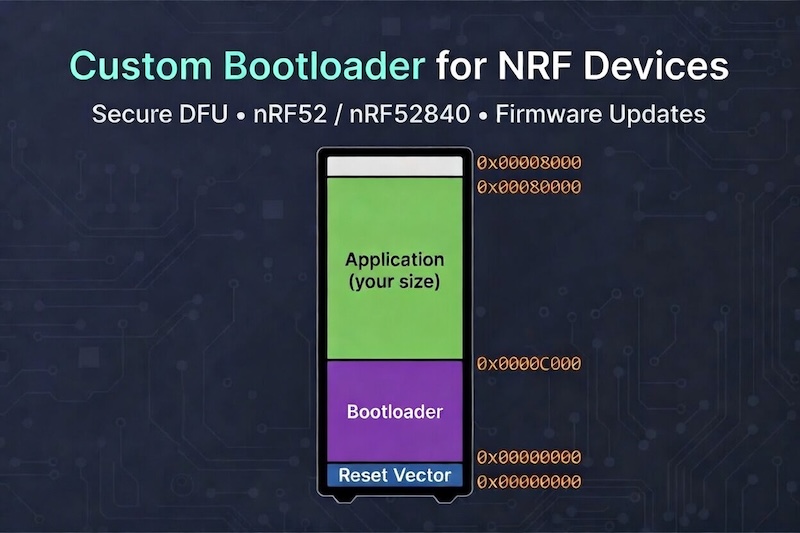
Background
When I was first getting into MeshCore I realised that nRF52 devices had the ability to do OTA updates via BLE, which is obviously a great feature when you need to update a repeater which is on a roof.
Unfortunately I never had much luck getting this to work. If you were lucky and used the right settings it might work with RAK4631, but particularly with ProMicro devices it never worked at all. This led me to dig around on GitHub where I found some ancient forgotten PRs to fix some of these issues.
Since they weren't getting any attention on the official Adafruit GitHub, I took it upon myself to fork the bootloader and include these fixes myself.
Installing the OTAFIX Bootloader for nRF52 Devices
For the best nRF52 OTA update experience, it's recommended to upgrade your device to the OTAFIX bootloader. This version includes:
- Automatic fallback to OTA DFU mode if an update fails
- Significantly faster OTA update speeds
- Additional quality-of-life improvements for certain devices, such as the ability to enter OTA DFU mode by holding a button while resetting
1. Enter UF2 DFU Mode
First, put your device into UF2 DFU mode.
For most nRF52 devices:
- Plug the device into your computer
- Quickly double-press the reset button (twice within 0.5 seconds)
- A UF2 USB drive should appear — the name of the drive will differ depending on the device
2. Check Your Current Bootloader (Optional but Recommended)
This step is important for devices like the Seeed Studio XIAO nRF52840, which often ship with the SENSE bootloader variant.
To check:
- Enter UF2 DFU mode
- Open the
INFO_UF2.TXTfile on the mounted drive
Board-ID: nRF52840-SeeedXiaoSense-v1, you will need to install the SENSE variant.
3. Download the OTAFIX Bootloader
You can now download the OTAFIX bootloader directly from the MeshCore flasher site! Go to https://flasher.meshcore.io:
- Select your device
- Choose Repeater
- A download link for the OTAFIX bootloader will appear in a highlighted banner — the file will be titled
update-xxxx.uf2
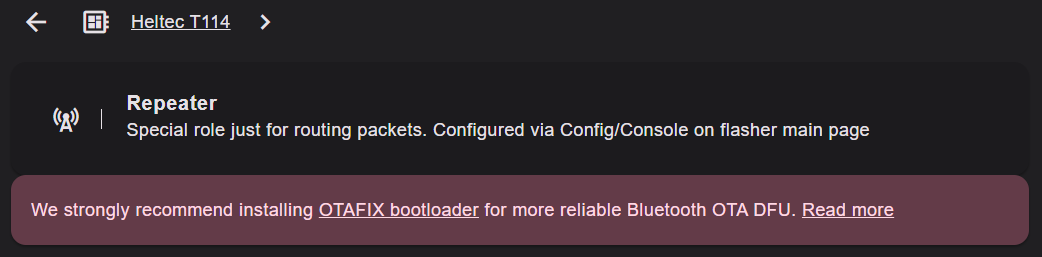
Alternatively, the OTAFIX bootloader is also available from the official site:
https://github.com/oltaco/Adafruit_nRF52_Bootloader_OTAFIX/releases
Download the correct UF2 file for your device from the Assets section.
- Files are named like:
update-xxxx.uf2 - You may need to click "Show more" to see all available files
update-xiao_nrf52840_ble_sense_bootloader-0.9.2-OTAFIX2.1-BP1.2_nosd.uf2
4. Install the Bootloader
- Drag and drop the
update-xxxx.uf2file onto the UF2 drive - The device will automatically:
5. Verify the Update
- Re-enter UF2 DFU mode
- Open
INFO_UF2.TXTagain
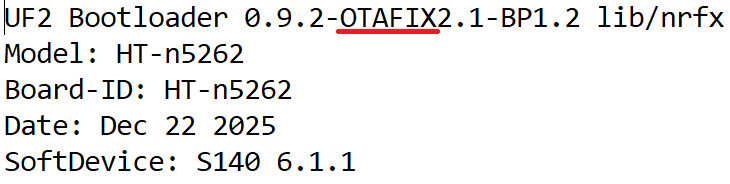
Device-Specific Notes
T1000-e: Entering DFU Mode
To enter DFU mode:
- Attach the magnetic USB cable
- Hold the button
- Quickly disconnect and reconnect the cable twice
ThinkNode M3: Entering DFU Mode
To enter DFU mode:
- Attach the magnetic USB cable
- Hold the button for approximately 25–30 seconds